“Disclosure: This post contains affiliate links, which means we may receive a commission if you click a link and purchase something that we have recommended. While clicking these links won’t cost you any extra money, they will help us keep this site up and running! Please check out our disclosure policy for more details.”
So you’ve been saving stuff on your pc since you bought it and its storage capacity has reached the point where it is effecting its perfomance, Taking longer to load web pages, programs being unresponsive and getting the “Exit or Wait for program to respond” alert. If that is you then you really need to develop a strategy for saving your files, For a lot of us that will be personal home admin like saving bank statements and such like, also saving pictures and family videos and selfies.
For anyone who has a business there me be many more items that require saving and retrieving frequently. but still your Pc is bloated out.
A typical solution is to backup your files and photo’s to the cloud and that’s fine but you are trusting the responsibility to a third party who is not going to get into trouble if you can’t produce your records to the authorities in the event of a failure. because you are ultimately responsible.
Okay so what is a good strategy? Over the years I have backed up my data to external hard drives, but external hard drives have their own set of advantages and disadvantages. Here’s a list of pros and cons:
Pros of External Hard Drives:
- Additional Storage: External hard drives provide extra storage space for your data, which can be especially useful if your computer’s internal storage is running low.
- Portability: They are compact and easy to transport, making them ideal for carrying large amounts of data between different locations.
- Backup Solution: You can use external hard drives to back up important files and documents, providing a layer of data protection against hardware failures or data loss.
- Data Security: External hard drives are isolated from your computer’s internal storage, reducing the risk of malware and viruses affecting your backups.
- Compatibility: Most external hard drives are plug-and-play and compatible with a wide range of devices, including Windows PCs, Macs, and some gaming consoles.
- High Capacity: External hard drives are available in various sizes, including large capacity options that can store several terabytes of data.
- Cost-Effective: They offer a cost-effective way to expand your storage compared to upgrading your computer’s internal storage.
Cons of External Hard Drives:
- Portability Limitations: Although they are portable, they are still bulkier and less convenient to carry around than smaller storage solutions like USB flash drives.
- Susceptible to Physical Damage: External hard drives can be damaged if dropped or subjected to physical shocks, potentially leading to data loss.
- Performance: While external hard drives can provide decent data transfer speeds, they may not match the speed of internal SSDs for tasks like running applications or games.
- Additional Power Required: Some external hard drives require an external power source, which may not be convenient when you need to use them on the go.
- Data Security Concerns: If not properly encrypted or secured, external hard drives are vulnerable to theft and unauthorized access.
- Limited Lifespan: External hard drives, like all storage devices, have a finite lifespan, and they can fail over time due to wear and tear.
- Potential Compatibility Issues: Some older external hard drives may not be compatible with newer computers due to changes in connectivity standards (e.g., USB-C vs. USB-A).
Just to sum up, external hard drives are a versatile and cost-effective storage solution, but they come with certain limitations related to portability, data security, and performance. Your choice should depend on your specific needs, considering the trade-offs between convenience and storage capacity.
So does the convenience of USB flash drives, a viable option, often referred to as USB sticks or thumb drives, have their own set of advantages and disadvantages. Here’s a list of pros and cons:
Pros of USB Sticks (USB Flash Drives):
- Portability: USB sticks are incredibly small and lightweight, making them highly portable and easy to carry in your pocket or on a keychain.
- Convenient Data Transfer: They offer a quick and convenient way to transfer data between computers and devices without the need for an internet connection.
- Plug-and-Play: USB sticks are typically plug-and-play devices, requiring no additional drivers or setup on most modern operating systems.
- Data Security: Many USB sticks come with built-in encryption and password protection options to secure your data.
- Compatibility: They are compatible with a wide range of devices, including computers, laptops, and even some smart TVs and gaming consoles.
- Reliable Storage: USB sticks use solid-state storage (no moving parts), making them less prone to physical damage compared to external hard drives.
- Variety of Capacities: USB sticks are available in various storage capacities, from a few gigabytes to several terabytes.


Cons of USB Sticks (USB Flash Drives):
- Limited Storage: While storage capacities have increased, USB sticks still have less storage space compared to external hard drives or internal hard drives.
- Easy to Lose: Their small size makes USB sticks easy to misplace or lose, and losing one can mean losing your data.
- Physical Durability: While more durable than external hard drives, USB sticks are not immune to physical damage or water exposure.
- Limited Write Cycles: USB flash drives have a limited number of write cycles, which means they can wear out over time, especially with frequent data writes.
- Speed: USB sticks may not provide the same level of data transfer speed as external SSDs or traditional hard drives.
- Security Risks: If not properly protected, USB sticks can pose security risks, as they can be used to transfer malware or compromise sensitive data.
- Compatibility Issues: Older USB sticks may have compatibility issues with devices that use newer USB standards (e.g., USB 3.0 vs. USB 3.1).
Because USB sticks are a highly portable and convenient solution for data transfer and storage, sure they come with limitations related to storage capacity, but they are easily available inexpensive and easy to backup to which I think goes a long way to solving users storage solutions and is why I use them. The durability, and security is down to how you look after them and keep them secure and I use a few additional strategies to help with that.
How I use USB STICKS. First I use a piece of software called ‘windirstat’ and is a disk usage statistics viewer and cleanup tool that is available for windows and other operating systems. info is available on their site which I have linked to at the bottom of this post. It gives a list of all the files and folders in a chosen drive or folder and has a visual display with color coded filetypes.
- Open and select the drive or folder you want to investigate.
(In the example below I have only selected my Wamp64 folder simply because my hard drive is almost at capacity)
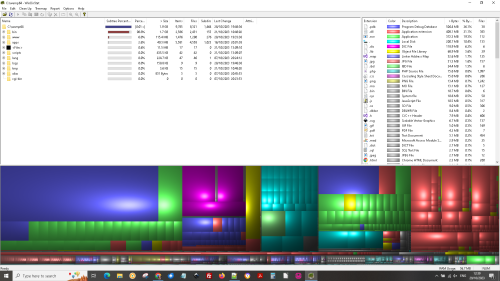
This shows you how many MB og GB your files and folders are using. If your hard drive is looking like this you really need to do something now to organise your laptop better. T see how full your device is open file explorer and click on ‘This PC’.

I make videos and use screen recording software which uses a lot of data which I have had to create a strategy to prevent filling my PC with items that can easily be stored on a thumb drive. If you want added security you can save the items as a zip folder I personaly use 7zip a free compression software that allows you to create a password if you want to add another level of security. simply plug in your USB Stick and move all the files onto it. I am currently studying a TEFL course at the time of posting and save my files to a Usb Drive. I then mark the drive and save it in a handy zip drive wallet that I can keep in my briefcase.


Links to Free Software:
Visit windirstat Website for download.
Visit 7-zip website to download 7-zip.